Azure OpenAI Service brings the power of OpenAI's foundation models—GPT-4o, GPT-4, GPT-3.5-Turbo, Embeddings, DALL·E, and Whisper—to the Azure cloud. It combines OpenAI's industry-leading AI with Azure's enterprise-grade security, compliance, regional availability, and integration with the broader Azure ecosystem.
What is Azure OpenAI Service?
Azure OpenAI Service is a managed API service that gives you access to OpenAI's large language models (LLMs) and multimodal models through a secure, enterprise-ready Azure endpoint. Unlike the public OpenAI API, Azure OpenAI offers:
- Data residency: Your prompts and completions are not used to train OpenAI or Microsoft models.
- Private networking: Connect via Azure Virtual Networks and Private Endpoints.
- Compliance: Meets SOC 2, ISO 27001, HIPAA, and other standards.
- RBAC and Azure AD: Fine-grained access control using Azure Active Directory.
Available Models
| Model | Use Case |
|---|---|
| GPT-4o | Multimodal chat, complex reasoning, vision tasks |
| GPT-4 Turbo | Long-context completion, coding, analysis |
| GPT-3.5-Turbo | Fast, cost-efficient chat and text tasks |
| text-embedding-ada-002 | Semantic search, clustering, classification |
| DALL·E 3 | Image generation from text prompts |
| Whisper | Speech-to-text transcription |
Setting Up Azure OpenAI
Step 1: Request Access and Create a Resource
- Apply for access at Azure OpenAI Access Request.
- Once approved, go to the Azure Portal > Create a resource > search Azure OpenAI.
- Configure:
- Subscription, resource group, and region.
- Pricing tier: Standard S0.
- Click Review + Create.
Step 2: Deploy a Model
- Open your Azure OpenAI resource.
- Click Go to Azure OpenAI Studio (or
oai.azure.com). - Navigate to Deployments > Create new deployment.
- Select a model (e.g.,
gpt-4o) and provide a deployment name. - Set tokens-per-minute (TPM) rate limit.
Making Your First API Call
Python SDK
pip install openai
from openai import AzureOpenAI

client = AzureOpenAI(
    api_key="<your-azure-openai-key>",
    api_version="2024-05-01-preview",
    azure_endpoint="https://<your-resource>.openai.azure.com/"
)

response = client.chat.completions.create(
    model="gpt-4o",  # Your deployment name
    messages=[
        {"role": "system", "content": "You are a helpful assistant."},
        {"role": "user", "content": "Explain Azure OpenAI in simple terms."}
    ],
    temperature=0.7,
    max_tokens=500
)

print(response.choices[0].message.content)
Streaming Responses
stream = client.chat.completions.create(
    model="gpt-4o",
    messages=[{"role": "user", "content": "Write a short poem about the cloud."}],
    stream=True
)

for chunk in stream:
    if chunk.choices[0].delta.content:
        print(chunk.choices[0].delta.content, end="", flush=True)
C# / .NET
dotnet add package Azure.AI.OpenAI
using Azure;
using Azure.AI.OpenAI;

var client = new AzureOpenAIClient(
    new Uri("https://<your-resource>.openai.azure.com/"),
    new AzureKeyCredential("<your-key>")
);

var chatClient = client.GetChatClient("gpt-4o");
var response = await chatClient.CompleteChatAsync(
    new UserChatMessage("What is Azure OpenAI Service?")
);

Console.WriteLine(response.Value.Content[0].Text);
Working with Embeddings
Embeddings convert text into high-dimensional vectors, enabling semantic search and similarity comparisons.
response = client.embeddings.create(
    input="Azure OpenAI Service provides access to OpenAI models.",
    model="text-embedding-ada-002"  # Your embedding deployment name
)

vector = response.data[0].embedding
print(f"Embedding dimensions: {len(vector)}")
Common use cases for embeddings:
- Semantic search: Find documents similar in meaning, not just keyword match.
- Recommendation systems: Suggest items based on content similarity.
- Clustering: Group documents by topic automatically.
- RAG (Retrieval-Augmented Generation): Fetch relevant context before querying the LLM.
Image Generation with DALL·E 3
response = client.images.generate(
    model="dall-e-3",
    prompt="A futuristic city skyline at sunset with flying cars, digital art",
    size="1024x1024",
    quality="standard",
    n=1
)

print(response.data[0].url)  # URL to the generated image
Building RAG Applications
Retrieval-Augmented Generation (RAG) is a pattern where you retrieve relevant documents and pass them as context to the LLM:
def rag_query(user_question: str, retrieved_docs: list[str]) -> str:
    context = "\n".join(retrieved_docs)
    response = client.chat.completions.create(
        model="gpt-4o",
        messages=[
            {
                "role": "system",
                "content": f"Answer questions using only the context below:\n{context}"
            },
            {"role": "user", "content": user_question}
        ],
        temperature=0
    )
    return response.choices[0].message.content
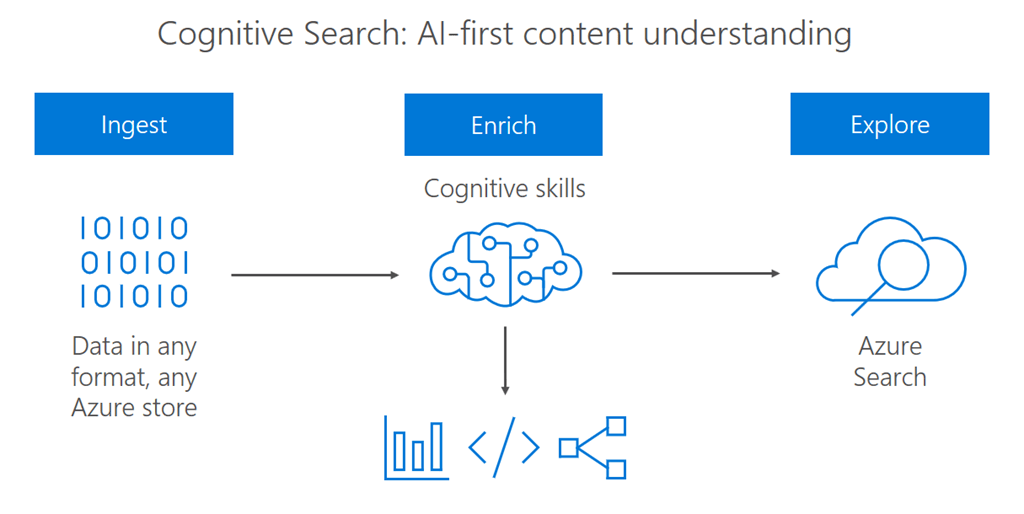
For a fully managed RAG experience, use Azure AI Search together with Azure OpenAI.
Function Calling
Function calling allows the model to invoke external tools:
tools = [{
    "type": "function",
    "function": {
        "name": "get_weather",
        "description": "Get current weather for a city",
        "parameters": {
            "type": "object",
            "properties": {
                "city": {"type": "string", "description": "City name"}
            },
            "required": ["city"]
        }
    }
}]

response = client.chat.completions.create(
    model="gpt-4o",
    messages=[{"role": "user", "content": "What's the weather in Hanoi?"}],
    tools=tools,
    tool_choice="auto"
)
Content Filtering
Azure OpenAI includes built-in content filters for harmful content categories (hate, violence, sexual, self-harm). You can configure filter strictness per category in Azure OpenAI Studio under Content filters.
Monitoring and Cost Management
- Use Azure Monitor to track token consumption, latency, and error rates.
- Set up alerts for TPM quota usage.
- Use
max_tokensandtemperaturecarefully to control cost. - Enable token streaming to improve perceived latency.
Best Practices
- System prompts: Craft clear, specific system messages to guide model behavior.
- Temperature: Use
0for deterministic tasks (Q&A, classification),0.7–1.0for creative tasks. - Token management: Estimate prompt tokens with
tiktokenlibrary to avoid exceeding context limits. - Retry logic: Implement exponential backoff for 429 (rate limit) errors.
- Prompt injection defense: Sanitize user inputs to prevent prompt injection attacks.
Conclusion
Azure OpenAI Service brings enterprise-grade reliability, security, and compliance to OpenAI's most powerful models. Whether you're building chatbots, search engines, document processors, or creative tools, Azure OpenAI provides the infrastructure and SDKs to deploy AI solutions at scale with confidence.
For full documentation, visit Azure OpenAI Service Documentation.